Scan a QR Code from an image online
Scan a QR code from an image or camera. Results appear in a popup. Copy the content or select Open link for a valid HTTP/HTTPS URL.
How to scan a QR Code from an image
This method is useful when the code is inside a screenshot, email, PDF or another screen on the device you are using.
- Start with a complete, sharp image: Keep all three large finder squares and the clear margin around the QR Code. Avoid a blurred or heavily compressed screenshot.
- Drop or choose the file: Add the image to the scanner above. It is decoded in the browser, so no camera or separate scanner app is required.
- Review the decoded content: Results appear in a popup. Copy the content or select Open link for a valid HTTP/HTTPS URL.
- Copy the result or scan another image: Copy the content to use elsewhere, or check the address and select Open link. Close the result window to return to the scanner.
How to scan a QR Code on iPhone
The Camera app and Code Scanner in Control Center can read QR Codes without a separate app.
When the QR Code is saved on the same iPhone, upload the image above instead of finding a second device.
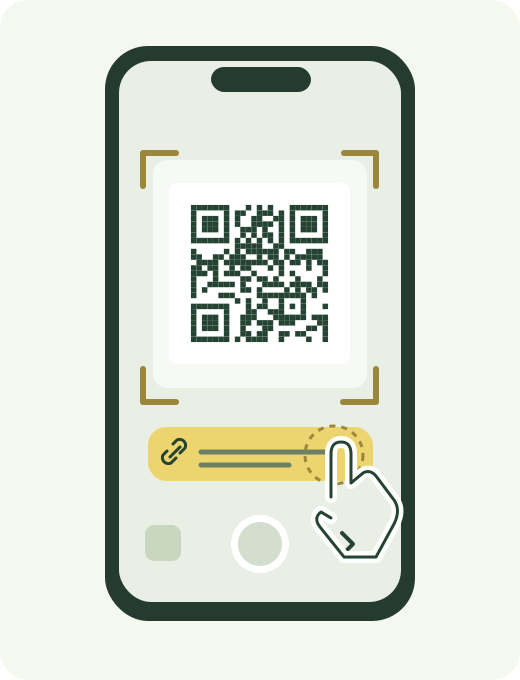
- Open Camera from the Home Screen, Lock Screen or Control Center.
- In Photo mode, hold the device so the whole QR Code sits inside the frame.
- Wait for the link or notification to appear, then tap it to open the content.
- If Code Scanner is missing, add Scan Code to Control Center and use it from there.
How to scan a QR Code on Android
The available scanner depends on the phone maker, Android version and camera app.
Camera from Google supports QR scanning only on selected devices. Button names and locations vary between manufacturers.
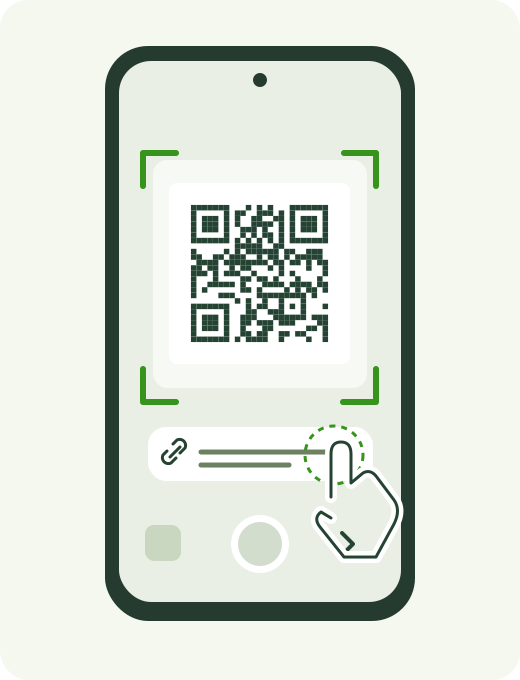
- Open Camera in Photo mode and point it at the QR Code. Tap the banner if one appears.
- If Camera does not recognize it, open Google Lens from Camera, Google Photos or the Google app.
- On Samsung Galaxy, try Camera or Scan QR code in Quick Settings; some models require the camera setting to be enabled.
- For an image already saved on the phone, open it in Gallery or Google Photos and use Lens, or upload it here.
Scan with LINE and other in-app scanners
Some apps include their own scanner, but each one may recognize only the QR formats it supports.
An in-app scanner is not always a general QR reader. If it rejects the code, use Camera, Lens or the upload tool above.
- LINE can scan LINE account codes, web links, text and several other common QR formats.
- In LINE's scanner, choose the image icon to read a QR Code from a saved picture.
- Social apps may prioritize profile, login or sharing codes from their own platform.
- Use a compatible bank or wallet app for payment QR Codes so it can show the recipient and amount before approval.
What to try when Camera cannot read the QR Code
Try the built-in tools first instead of immediately installing an unfamiliar scanner app.
A retail barcode scanner must support 2D codes. Hardware designed only for 1D barcodes cannot read QR Codes.
- Show the QR Code on one screen and scan it with the Camera on a second phone.
- Save or capture the image, then upload it to QRCode GEN from a computer or phone.
- Use Google Lens or the QR recognition option already available in the photo gallery.
- If another app is necessary, install it only from an official store and review the permissions it requests.
Common reasons a QR Code image will not scan
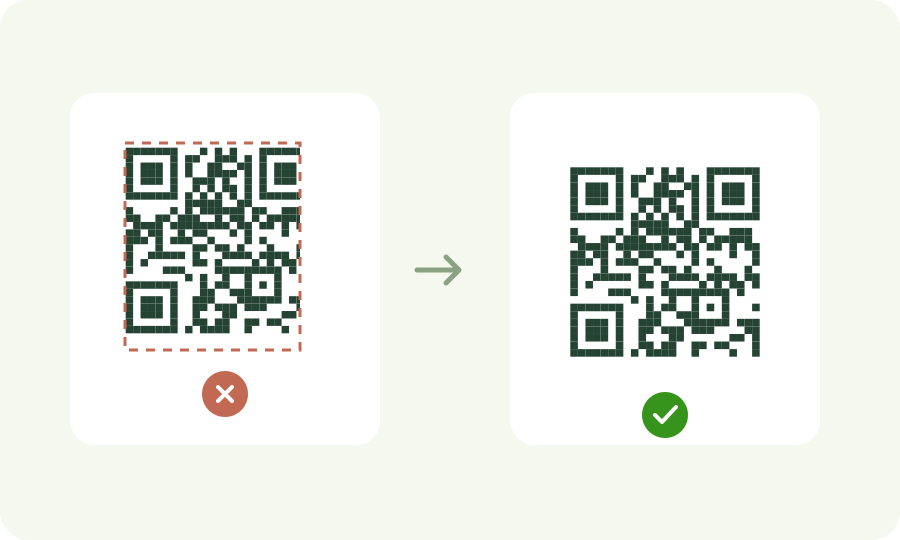
The code or its clear margin is cropped
Use the complete image. The three large finder squares and the light margin around the code must remain visible.
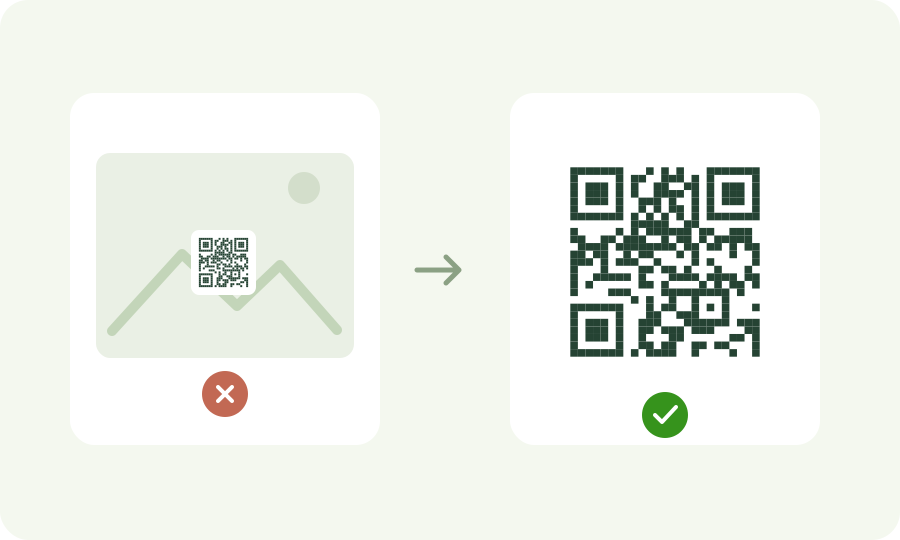
The QR Code is tiny inside a large screenshot
Crop away unrelated content without cutting into the code, then save the image at a high quality.
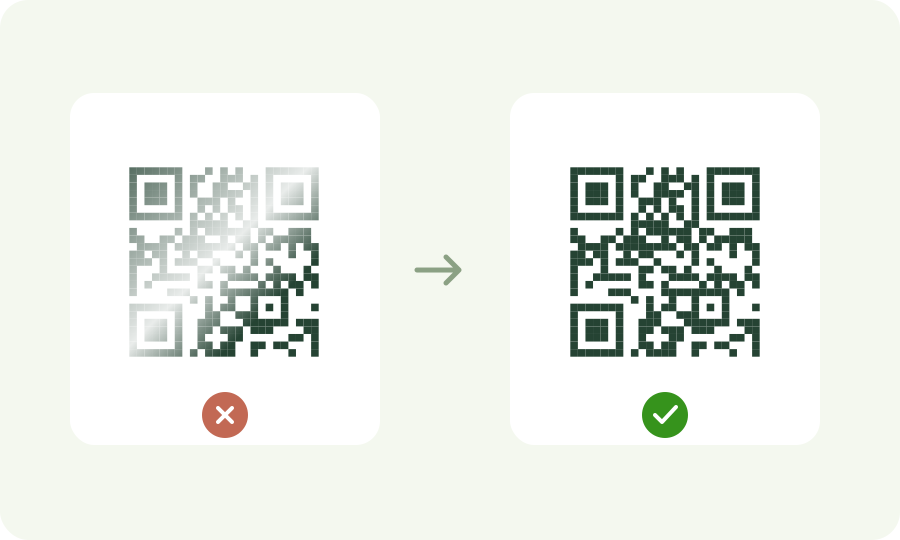
The image is blurred, compressed or reflective
Use the original file, take a closer photo or increase screen brightness when photographing another device.
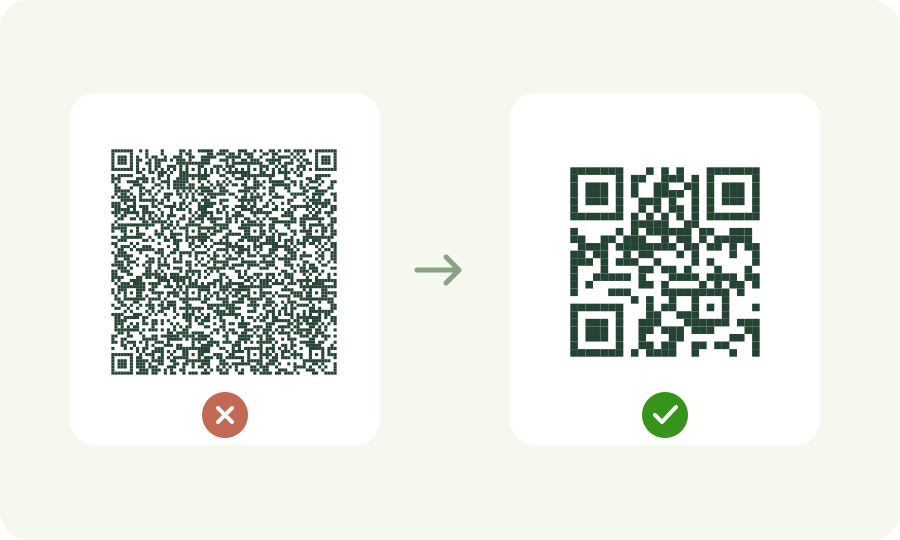
The pattern is too dense for its printed size
Long URLs, detailed vCards and large text blocks produce denser codes. Shorten the content, use a short link or create a dynamic QR Code.
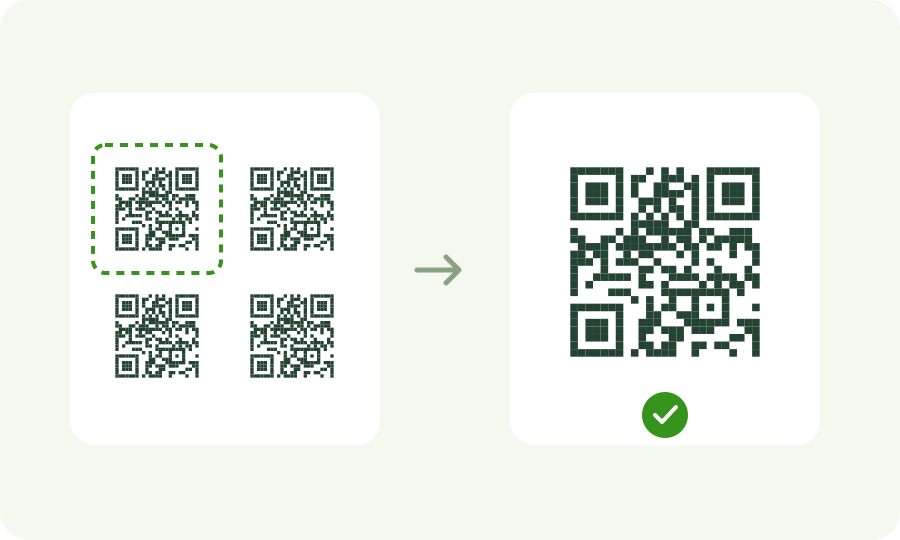
The image contains several QR Codes
Crop around the code you need. The scanner currently returns the first QR Code it recognizes.
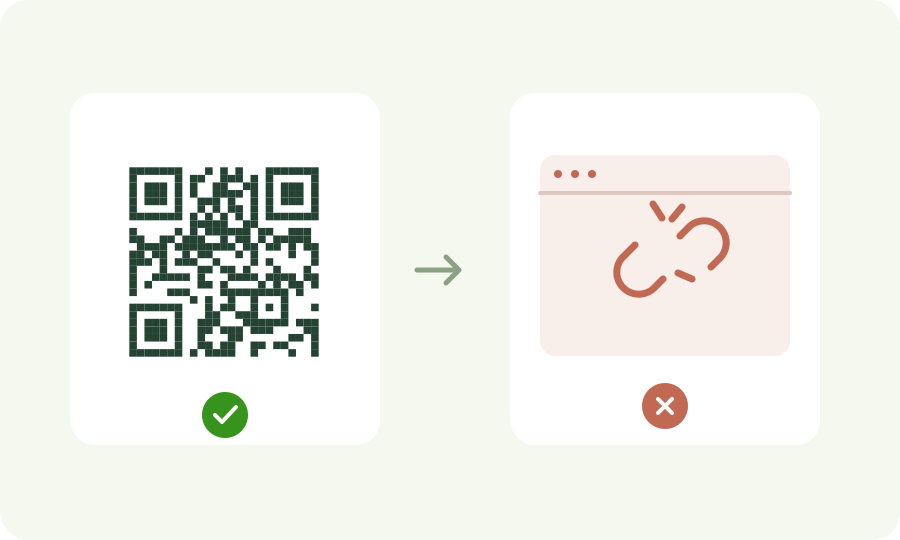
The link was decoded but the destination will not load
The QR image may still be valid. Check the connection, file permissions, URL spelling and whether the destination still exists.
A readable QR Code is not necessarily a safe one
Check the domain before entering a password, one-time code or payment details because QRCode GEN does not verify the destination site.
- Read the full domain and watch for characters that imitate a known brand
- Do not enter a password, one-time code or card details until the site is verified
- Do not install files from outside an official app store
- For payments, confirm the recipient, amount and currency in the banking app
Frequently asked questions about scanning QR Codes online
- Is my QR Code image uploaded to a server? No. The image pixels are processed in the browser on your device. QRCode GEN does not need to upload the file to decode it.
- Can I scan a QR Code from a screenshot? Yes, if the screenshot is sharp and contains the complete code. Crop closer when the code is very small, but keep its edges and surrounding margin.
- Which image formats are supported? PNG, JPG, JPEG and WebP files up to 12 MB are supported. Convert HEIC images to JPG or PNG before uploading.
- Why can a clear-looking image still fail? The clear margin may be missing, the code may be distorted or low contrast, or too much data may be packed into a small image. Try the original file or a higher-resolution crop.
- Can this tool process a payment QR Code? It may display the encoded data, but it does not verify the recipient or make a payment. Scan again with a compatible bank app and confirm every payment field there.
- Why did the URL decode but not open? Select Open link in the result popup to visit the address. If it still does not open, check your connection and any sign-in or file permissions required by the destination.